
There are two available actions can be used to grant credit. They are Set Completion and Enroll & Set Completion. It is important to understand when to use which action to ensure that your training records are properly maintained.
For those users who have do not have a status of “Complete” you should use the Set Completion action to ensure that any current enrollments are updated without creating a duplicate enrollment. If you do not use this action an additional enrollment may be created.
Example: Each of the four users in the screenshot below have a different status for this course, but Set Completion should be used to grant credit for each of them. The statuses are:
The first three users are already enrolled in the course while the last user has never taken the course or been enrolled. If you were to use Enroll and Set Completion for them, this would create a duplicate enrollment for the first three users.
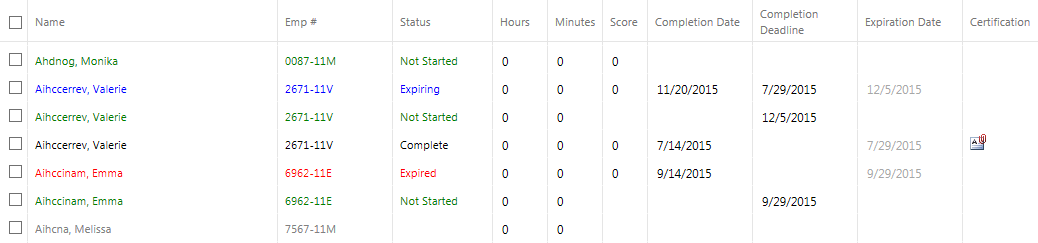
Note: When working with courses that have an expiration period, always check the Show Multiple Enrollments box on the Audience tab of the Filters pop-up. This will allow you to see the automatically created enrollment for users that have the status of Expiring or Expired.
The screenshot below shows the same audience as above, but with the Multiple Enrollments visible. This makes it easy to see the automatically created enrollments. Just remember to only select the Not Started (green) status for users that have the status of Expiring or Expired.
Users who have a status of “Complete” do not currently have the course on their learning plan, so you should use the Enroll and Set Completion action to ensure that a new enrollment is created. If you do not use this action the may be overwritten.
Example: The two users shown below have already taken this course in the past. They just completed a refresher course and now you need to grant them credit. Since they were not previously enrolled in this course, you need to use Enroll and Set Completion. If you used Set Completion, then their previous (i.e. 2015) completion date would be erased

Note: If an user only has a Complete status (black – this includes Waive and Exempt), then use Enroll and Set Completion. For any other color/status, use Set Completion.
Manage Credit and Enrollment Screen
Select a Course
The Results Grid
Toolbar Options
Enroll a Group
Set Completion for a Group